~~~ GIT CHEAT SHEET ~~~
What is Git ?
Git is a free, open source DVCS( Distributed Version Control System) designed to handle everything from small to very large projects with speed and efficiency.
Git tracks the changes you make to files, so you have a record of what has been done, and you can revert to specific versions should you ever need to.
Git also makes collaboration easier, allowing changes by multiple people to all be merged into one source.
.png)
.png)
Configure Your Git
Git uses username to associate commits with an identity by using the git config command.
git config --global user.name "my name"
Any future commits pushed to github will be associated with this email address.
git config --global user.email "me@example.com"
Initialise a git repository
The git init command creates an empty Git repo in your specified directory
cd path/to/your/directory
git init
This will create an empty git repo in the specified directory
Git operations
To create a local copy of a remote repo we use the git clone
cd path/to/your/directory (Where you want the remote repo to be stored locally)
git clone path/to/repo
This will create a directory having the same name as the "cloned" repo, initialises a .git directory in it down all the data and creates a working copy of that repo locally
Git Workflow
The local repo consists of three "trees" maintained by git
1. Working Directory that holds the actual files.
2. Index that acts as staging area.
3. HEAD that points to the last commit made.
Git Add
The git add command adds a file to the staging area for the next commit.
git add example_file
OR
git add .
Git Status
The git status command shows the different states of files in working directory and staging area,like files that are modified but unstaged and files staged but not commited.
It is always a good idea to check on what branch one is before commiting changes
git status
Git Commit
The git commit command captures a snapshot of the project's currently staged changes.
It stores the current contents of the INDEX in a new commit along with commit message.
git commit -m "descriptive message"
A commit message is a log message from the user describing the changes.
Git Push
The file after commiting is commited in the HEAD of your local working copy and is not yet in your remote repository.
To send those changes from local -> remote repository we use git push command.
git push origin master
Enter the Github username and password to prompt the associated remote repo to push changes.
Branching in Git
Branches are useful to develop features isolated from each other. The master branch is the default branch when a repo is created. Creating a new branch means creating a new pointer to move around.
git branch testing
~ This created a new branch but has not switched to it.
git checkout testing
~ This command switches to an existing branch "testing". OR You can directly perform the above operation as:
git checkout -b testing
~ A branch is not available to others unless it is pushed to remote repo.
git push origin testing
~ * Move back to master branch by:
git checkout master
~ * Delete an existing branch by:
git branch -d testing
Git Log
The git log command lists the commits made in a repo in reverse chronological order i.e most recent commits are shown first.
git log
One of the more helpful options is -p or --patch, which shows the difference introduced in each commit. One can also limit the number of log entries displayed, such as using -2 to show only the last two entries.
git log -p -2
Git Fetch
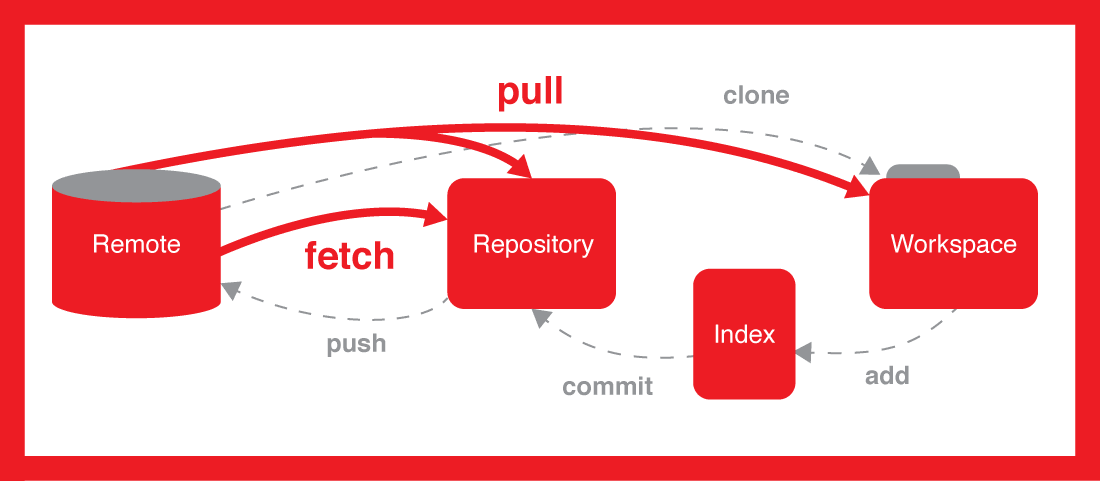
When downloading content from a remote repo, git pull and git fetch commands are available to accomplish the task.
The git fetch command downloads commits, files, and refs from a remote repository into your local repo but not update your local repo's working state, leaving your current work intact.
git fetch remote_repo
Fetches all of the branches from the repository.
This also downloads all
of the required commits and files from the other repository.
git fetch remote_repo branch_name
Fetches only specific branch from remote repo.
To synchronize the local repository:
Suppose, your team member has added some new features to your
remote repository. So, to add these updates to your local repository, use
the git fetch command.
git fetch origin
Git Pull
The git pull command is used to fetch and download content from a remote repository and immediately update the local repository to match that content.
Merging remote upstream changes into your local repository is a common task in Git-based collaboration work flows.
The git pull command is actually a combination of two other commands, git fetch followed by git merge.
In the first stage of operation git pull will execute a git fetch
scoped to the local branch that HEAD is pointed at.
Once the content is
downloaded, git pull will enter a merge workflow.
A new merge commit will
be-created and HEAD updated to point at the new commit.
git pull repo_name
Making a Pull Request(PR) in GitHub
A pull request is a commit or series of commits that you send to the owner of the repository so that they incorporate it into their tree.
Most open source projects have "Contributing Guideliness" (eg: CONTRIBUTING.md file) in their repos. Make sure to go through the guideliness before making a PR.
Making a PR in Github